Chapter: 4 Connecting to Common Data Sources
Power BI Desktop can connect to hundreds of different data sources, but most Monitoring and Evaluation and Public Health workflows rely on a small and predictable subset.
The Get Data button on the Home ribbon is always the starting point. However, effective use of Power BI is less about knowing every connector and more about knowing which connector to use in a given situation.
In this chapter, we will connect Power BI to the integrated sample datasets used throughout this book and build confidence before we begin cleaning and modeling the data.
4.1 Before You Begin: The Sample Dataset Used in This Book
All practical exercises in this guide use a synthetic, patient-level integrated health dataset generated specifically for learning.
The dataset represents routine service delivery across:
- Antenatal Care (ANC)
- HIV and ART
- Malaria
- Tuberculosis (TB)
- Non-Communicable Diseases (NCDs)
No real patient data is used.
4.1.1 Files Included
You should have the following CSV files available:
dim_patient.csvdim_facility.csvdim_date.csvfact_patient_visits.csv
These files are intentionally not clean. They contain common data quality issues that reflect real health information systems. We will address these issues in later chapters.
For now, focus only on connecting the data successfully.
4.2 File-Based Data Sources
File-based data is the most common entry point for M&E professionals and is how we will begin.
All sample datasets used in this book are provided as CSV files, making them easy to import and reuse.
4.2.1 Practical Exercise 4.1: Importing the Integrated Health Fact Table
Objective: Connect Power BI to the main patient-level fact table.
Steps:
- Open Power BI Desktop
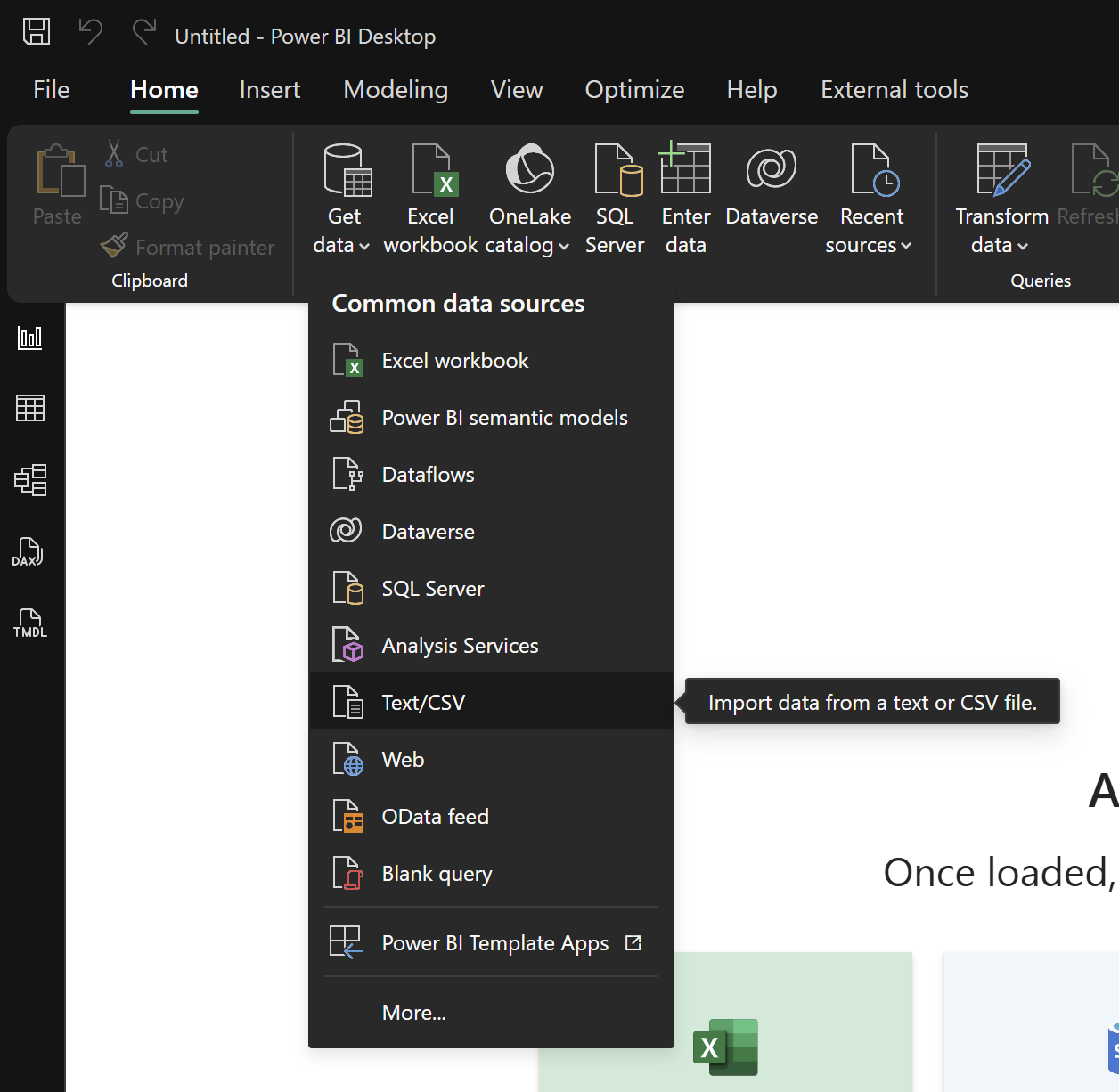
- Click Get Data → Text/CSV
- Select
fact_patient_visits.csv
- Review the data preview
- Click Load
To import a CSV file, use the Get Data menu and select the Text/CSV option.
What to Observe:
- The number of rows loaded
- Yes/No fields with inconsistent formatting
- Date fields that appear as text
- Missing or unexpected values
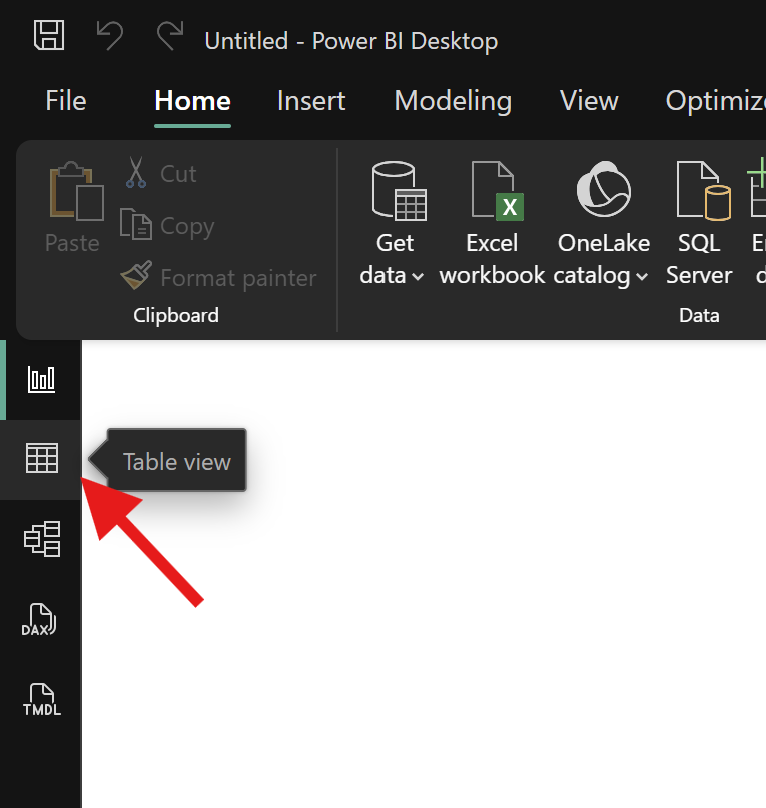
To view the imported data, click the Table View icon on the left sidebar.
Do not attempt to fix anything yet. We will address these issues in the next chapter.
4.2.2 Practical Exercise 4.2: Importing Dimension Tables
Objective: Import supporting dimension tables used for analysis.
Repeat the steps above for each of the following files:
dim_patient.csvdim_facility.csvdim_date.csv
You should now have four tables loaded into Power BI.
Reflection:
As you review the imported tables, consider:
- Which tables contain unique records?
- Which tables are primarily descriptive?
- Which table contains repeated transactional records?
- Which fields look suitable for relationships?
These questions will become important in the modeling chapter.
4.3 Understanding Why CSV Is Used Here
CSV files are widely used for data exchange in public health systems, including exports from:
- DHIS2
- EMRs
- KoboToolbox and ODK
- Laboratory systems
They are lightweight, consistent, and ideal for automation, but they often contain:
- Formatting inconsistencies
- Missing values
- Invalid dates
- Mixed data types
Power BI is designed to handle these challenges when used correctly.
4.4 The Folder Connector (Optional but Powerful)
In real-world reporting, data is often received periodically, such as:
- Monthly extracts
- Quarterly program reports
- Routine facility submissions
The Folder connector allows Power BI to combine multiple files with the same structure automatically.
4.4.1 Practical Exercise 4.3: Exploring the Folder Connector (Optional)
Objective: Understand how Power BI handles multiple files.
Setup (Optional):
- Create a folder on your computer
- Copy
fact_patient_visits.csvinto it multiple times - Rename the copies (for example:
Jan_visits.csv,Feb_visits.csv)
Steps:
- Click Get Data → Folder
- Select the folder
- Click Combine and Transform
Reflection:
- Review the combined data preview
- Observe how Power BI applies the same steps to each file
- Note how this approach supports ongoing reporting
We will not use this method for the main exercises, but it is important to understand.
4.5 Database and Online Sources (Context Only)
As programs scale, data may be stored in:
- SQL databases
- Cloud platforms
- APIs
- SharePoint Lists
Power BI supports these sources, often with the help of a gateway for secure refresh.
For now, we focus on file-based data to keep learning accessible and reproducible.
4.6 Understanding Connection Modes
When importing the sample datasets, Power BI uses Import mode by default.
4.7 Practice Summary
By the end of this chapter, you should have:
- Imported all four sample datasets
- Confirmed that data loads successfully
- Resisted the urge to clean or model prematurely
At this stage, the data may look messy. That is expected.
The next chapter focuses on cleaning and transforming data using Power Query, where we will systematically fix these issues and prepare the data for proper modeling and analysis.
Power BI for M&E and Public Health Data Analysts